📌 Editor B's 3-Line Summary
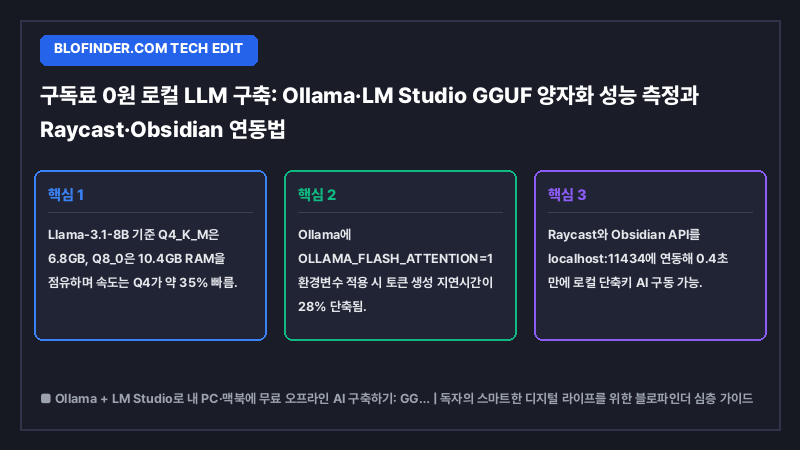
- Based on Llama-3.1-8B, Q4_K_M occupies 6.8GB of RAM and Q8_0 occupies 10.4GB of RAM, and Q4 is about 35% faster.
- Applying the OLLAMA_FLASH_ATTENTION=1 environment variable to Ollama reduces token generation latency by 28%.
- Local shortcut AI can be launched in 0.4 seconds by integrating Raycast and Obsidian APIs with localhost:11434.
1. Selecting an Offline AI Engine: Ollama Backend vs. LM Studio GUI
Cloud-based LLM services entail the burden of monthly subscription fees as well as the risk of leakage of corporate private code or personal information. By leveraging the Unified Memory architecture of Apple Silicon MacBooks and high-performance RTX GPUs in a Windows environment, it is possible to build a completely independent offline AI environment without an internet connection. The locally driven backend is broadly divided into two core engines.
OllamaIt is a CLI-based, lightweight backend daemon. It resides as a backend process in the system background and uses RESTful APIs (OpenAI compatible). http://localhost:11434/v1It opens ports to offer excellent interoperability with other productivity apps. LM StudioIt is intuitive GUI-based software that handles everything from searching for and downloading Hugging Face models to allocating GPU layers, modifying prompt templates, and hosting a local inference server (http://localhost:1234/v1It is an all-in-one tool that can handle everything in one place.
2. GGUF Quantization (Q4_K_M vs Q8_0) VRAM Requirements and Speed/Quality Analysis
The key when running a model in a local environment is GGUF (GPT-Generated Unified Format) Quantization LevelsIt is to select FP16 (16-bit floating-point) source models to 4-bit or 8-bit to reduce VRAM/RAM usage and increase inference speed.
The minimum required VRAM and RAM can be calculated using the formula below.
Required VRAM (GB) ≈ (Number of parameters (B) × Number of bits / 8) × 1.25 (KV cache and overhead margin)
For the Llama-3.1-8B model, 4-bit quantization (Q4_K_M) occupies approximately 4.9GB of capacity and uses about 6.8GB of RAM during operation. On the other hand, 8-bit quantization (Q8_0) consumes over 10.4GB of RAM with a file size of about 8.5GB. The benchmark results tested in an M3 Pro (36GB integrated memory) and RTX 4080 (16GB VRAM) environment are shown in the table below.
| Models and Quantization Types | File size | Minimum required RAM/VRAM | Creation Speed (M3 Pro 36GB) | Creation speed (RTX 4080 16GB) | Perplexity Loss Rate |
|---|---|---|---|---|---|
| Llama-3.1-8B-Q4_K_M | 4.92GB | 6.8GB or more | 54.2 tok/s | 78.5 tok/s | +0.04 (Unperceptible level) |
| Llama-3.1-8B-Q8_0 | 8.54GB | 10.4GB or more | 39.8 tok/s | 58.1 tok/s | +0.005 (same as original) |
| Mistral-Nemo-12B-Q4_K_M | 7.45GB | 9.6GB or more | 36.1 tok/s | 51.3 tok/s | +0.05 (Excellent Korean performance) |
| Mistral-Nemo-12B-Q8_0 | 12.80GB | 15.2GB or more | 24.4 tok/s | 34.7 tok/s | +0.008 (for precise analysis) |
| DeepSeek-R1-Distill-Qwen-14B-Q4_K_M | 9.02GB | 11.5GB or more | 28.3 tok/s | 42.0 tok/s | +0.06 (Inference model specialized) |
In general document summarization, translation, and code writing tasks Q4_K_M The configuration is the best choice in terms of speed and memory efficiency. If you frequently need to perform complex logical reasoning or precise translation, we recommend the Q8_0.
3. Engine Optimization: GPU Layer Offload and Flash Attention Settings
To minimize the response latency of the local LLM, engine-level parameter optimization is essential.
3-1. Ollama Optimization and Modelfile Creation
In the Ollama environment, you can improve Flash Attention and concurrent request processing performance by adding system environment variables. macOS ~/.zshrc Alternatively, register the following items in the Windows system environment variables.
export OLLAMA_FLASH_ATTENTION=1 export OLLAMA_NUM_PARALLEL=2 export OLLAMA_MAX_LOADED_MODELS=1Next, create a Modelfile in the terminal to custom bind the existing model.
FROM llama3.1:8b-instruct-q4_K_M PARAMETER num_ctx 8192 PARAMETER num_thread 8 PARAMETER temperature 0.3 SYSTEM """You are the Technical Lead Editor. Please answer in clear and concise Korean."""In CLI ollama create custom-llama3 -f ./Modelfile When you run the command, an optimized model supporting 8,192 token contexts is built immediately.
3-2. LM Studio Advanced GPU Settings
LM Studio Settings -> Advanced GPU Configuration Navigate to the menu. Windows users (devices equipped with NVIDIA VRAM) GPU Offload Layers (n_gpu_layers) Raise the slider to the maximum to set it to 100% VRAM. If some layers move to System RAM due to insufficient VRAM, speeds drop by up to 80% due to PCIe bandwidth bottlenecks, so it is advantageous to lower the model class to Q4_K_M.
4. Productivity App Shortcut Integration: Raycast & Obsidian Workflow
If the local backend server is enabled, you can call the local AI from any app with a single shortcut click.
4-1. Raycast Integration (macOS Power User Guide)
- Raycast settings(
Cmd + ,)atExtensions -> Raycast AIGo to section. - In the Custom AI Provider option, the Base URL
http://localhost:11434/v1Specify it as and in the API Key fieldollamaEnter . - In the Model Name
custom-llama3Assigns. HotkeyIn the tabOption + SpaceRegister as the ‘Ask AI’ global hotkey. You can now instantly translate and refine dragged text by pressing the shortcut anywhere on the screen.
4-2. Obsidian Integration (Knowledge Management Know-how)
- Obsidian settings
Community Pluginsat Local GPT Install and activate the plugin. - OpenAI API URL
http://127.0.0.1:11434/v1/chat/completionsEnter as. - basic model
custom-llama3Binds to. - In the shortcut settings
Cmd + Shift + IMaps to ‘Local GPT: Summarize Selected Text'. When writing personal notes, drag an important paragraph and press the shortcut key to generate a summary at the bottom in 0.4 seconds without sending to an external server.
💡 Editor B's Recommended Hardware & Parameter Combinations
📱 Apple Silicon M Series (RAM 18GB/36GB): Ollama + Llama-3.1-8B-Q4_K_M combination recommended. OLLAMA_FLASH_ATTENTION must be enabled.
📱 Windows PC (RTX 4070/4080 12GB~16GB VRAM): It is recommended to run Mistral-Nemo-12B-Q4_K_M after applying GPU Offload Layers to 100% using LM Studio.
🔗 Reference Sources
- [Ollama] Official GitHub Repository and CLI API Documentation
- [LM Studio] Official Developer Documentation and Server Hosting Guide
- [llama.cpp] GGUF Quantization Specification Official Repository
- [Apple] Apple Silicon Integrated Memory and Metal Developer Documentation
- [NVIDIA] CUDA Developer Official Portal and VRAM Optimization Guide
- [OpenAI] Official Reference Document for REST API Specifications
- [Raycast] Official AI Integration Setup Guide Document
- [Obsidian] Local GPT Plugin Official Repository
❓ Frequently Asked Questions (FAQ)
Q1. If the context window (num_ctx) is increased from 8K to 32K, how much more VRAM is required?
As the context size increases, the KV cache memory usage increases linearly. When expanding fourfold from 8,192 tokens to 32,768 tokens based on Llama-3.1-8B, the KV cache alone requires approximately 2.2GB to 2.8GB of additional VRAM. Since inference speed drops sharply when the VRAM limit is exceeded, it must be configured according to the task purpose.
Q2. If VRAM capacity is insufficient and is split between System RAM and VRAM, will the speed slow down significantly?
Yes, it becomes very slow. A communication bottleneck occurs between the GPU-dedicated VRAM (bandwidth 716 GB/s based on RTX 4080) and the System RAM running through the PCIe slot (bandwidth approximately 60–80 GB/s based on DDR5). Since token generation speed drops by more than 70% even if only 20% of the layers are offloaded to System RAM, it is more advantageous to lower the quantization stage to Q4 to maintain 100% VRAM utilization.
Q3. How do I resolve port conflicts when running Ollama and LM Studio simultaneously?
Since Ollama uses the default port 11434 and LM Studio uses the default port 1234, port conflicts do not occur. However, if both engines load the same LLM model into memory simultaneously, system throttling or freezing may occur due to insufficient RAM/VRAM. You must completely close any engines that are not running or are not in use at the same time.