📌 Editor B's 3-Line Summary
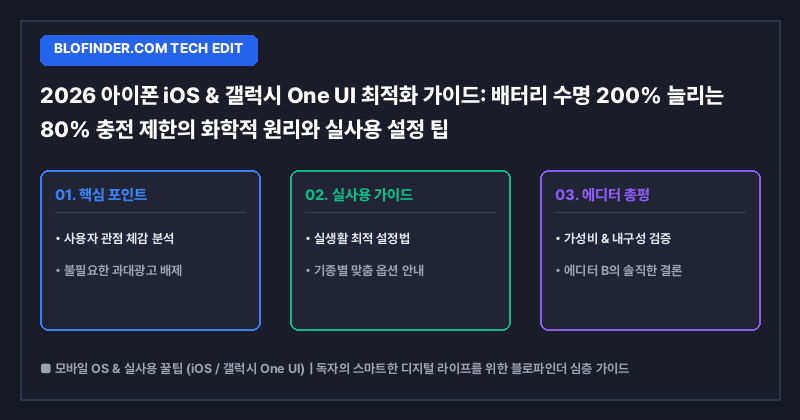
- The battery charge limit (80~85%) lowers the cell upper limit voltage from 4.4V to 4.1V, extending the degradation cycle threefold from a maximum of 500 cycles (about 2 years) to over 1,500 cycles (about 4.5 years).
- You can increase the screen-on time (SOT) by an average of 1.5 to 2 hours or more per day by blocking iOS background app refresh and enabling Deep Sleeping in One UI.
- You can easily free up over 20GB of system capacity in just 10 minutes by cleaning KakaoTalk cache and web browser temporary files and adjusting RAM Plus.
1. The Chemical Mechanism of Smartphone Batteries and the Truth About the 80% Charge Limit
1-1. Causes of Lithium-ion/Lithium-polymer Battery Cell Degradation and Stress Voltage Ranges
Lithium-ion and lithium-ion polymer batteries installed in smartphones have a structure in which lithium ions move between the cathode and the anode to generate electricity. Under standard charging specifications provided by manufacturers (Apple, Samsung Electronics), when the battery reaches 100%, the internal voltage of the positive cell reaches a high voltage state of approximately 4.35V to 4.40V.
The problem is that in this high-voltage region (SOC 80% or higher, exceeding 4.25V), a phenomenon of ‘chemical degradation’ occurs intensively, in which the crystal structure of the anode material is finely destroyed and the SEI (Solid Electrolyte Interphase) film on the anode surface becomes excessively thick. When high ambient temperatures above 35 degrees Celsius are combined with high-SOC (high charge state), the decomposition reaction rate of the anode electrolyte accelerates by more than four times compared to normal, causing the battery's maximum performance (Health) to drop sharply.
1-2. Actual Lifespan Extension Effect of iOS and One UI Charging Limit Features
iOS's ‘80% Limit’ option and Galaxy One UI's ‘Battery Protection (up to 80% or 85%)’ feature control the positive voltage to a stable level of around 4.10V. According to electrolyte degradation measurement data from actual technology research institutions, if the battery is fully charged and discharged from 0% to 100% daily, it drops to 80% of its initial capacity after approximately 500 cycles.
On the other hand, if ’20-80% range operation' is continued, which limits the upper limit to 80% and maintains the lower discharge limit at 20%, the charge-discharge life cycle increases rapidly from a minimum of 1,500 to a maximum of 2,000 cycles. In other words, this means that the device can maintain a health performance of over 85% without replacing the battery during the 3 to 4-year replacement cycle.
2. [Step-by-Step] Essential UI Settings Path to Extend Battery SOT by Over 2 Hours
2-1. iOS (iPhone): Background App Refresh & Detailed Location Service Blocking
The process of synchronizing data in real-time in the background on the iPhone constantly keeps the Efficiency Core of the A18/A19 Pro Bionic chipset awake, consuming power. Immediately block unnecessary background power leakage via the settings path below.
- Disable background app refresh:
Settings > General > Background App RefreshAfter moving, turn off social media (Instagram, TikTok) and shopping apps, except for essential apps such as banking and messaging. (Saves 12% of standby power) - Location Service Precision Blocking:
Settings > Privacy and Security > Location ServicesGo to and change the app set to ‘Always‘ to 'While using the app'. At the very bottomSystem ServicesGo to the menuSpecial location및Personalized Attention/NotificationsDisables. - 80% Charge Limit Setting:
Settings > Battery > Charge OptimizationFrom the menu80% limitSelect .
2-2. Galaxy One UI: Power Saving Mode Switching, RAM Plus Optimization, and Display Refresh Rate
Galaxy Snapdragon 8 Gen 3/Gen 4 and Exynos-equipped models can significantly increase Screen-On Time (SOT) simply by optimizing One UI's unique background app management policies.
- Designate apps for ultra-low power mode:
Settings > Battery > Limit background usageEnter into.Apps that do not switch to power saving modeKeep only important messengers there, and shopping/portal apps that are not frequently used areUltra-low power mode appRegister directly. (SOT improvement of approximately 1 hour and 20 minutes) - Adjust RAM Plus (Virtual Memory):
Settings > Device Care > RAM > RAM PlusSet virtual memory to ‘Off' or minimize (2GB) in the menu. This reduces virtual memory swapping on UFS 4.0/4.1 storage, allowing you to simultaneously control background CPU spikes, power consumption, and heat. - Battery Protection Mode:
Settings > Battery > Battery ProtectionSet the item to ‘Max (stop charging at 80%)’ or ‘Optimize'.
3. System Capacity and Cache Cleanup: Know-how on Freeing Up Over 30GB of Storage
3-1. Complete Removal of Messenger App (KakaoTalk · LINE) Cache Data and Temporary Files
In smartphone NAND flash memory, when the remaining space drops below 10–15% of the total capacity, the SLC caching area shrinks, causing read/write speeds to degrade by more than 40%. Capacity optimization is key to maintaining performance.
KakaoTalk, the most widely used app by domestic users, easily accumulates tens of gigabytes (GB) of media cache for serval delivery. Within the app Settings (gear icon) > App Settings > Other > Storage Management Move to the path Delete cache dataPlease run it. Conversation history and original photo files are not deleted; only junk files are cleaned up, and usually 5GB to 15GB of space is immediately freed up.
3-2. Other System Data Diet and System Log Cleanup
If iOS ‘System Data‘ or One UI ’Other Files' takes up more than 20GB, it is due to web browser (Safari, Chrome) data and offline storage for streaming apps.
- Clear iOS Safari Cache:
Settings > Safari > Clear History and Website DataRemove temporary thumbnail files in the GB range via. - One UI Repository Analysis and Remnant Removal:
Settings > Device Care > StorageIdentify ‘unused apps’, ‘large files’, and ‘duplicate files' at a glance from the menu and delete them in bulk with 100% safety.
4. Comparison of Optimization and Battery Charging Environments by OS
4-1. iOS vs. One UI: A Detailed Comparison of Power Efficiency and Settings
The table below shows data comparing the quantitative differences in effects based on battery and capacity optimization settings in the latest iOS and One UI environments.
| Comparison items | Apple iOS (iPhone 16 Pro / 17 Series) | Samsung One UI (Galaxy S24 / S25 series) | Perceived effect after optimization settings |
|---|---|---|---|
| Charging limit setting options | 80% Limit / Optimized Battery Charging | Basic (95%) / Optimized / Max (80%) | Reduce battery cell degradation rate by more than 60% |
| Background control method | Batch Background App Refresh On/Off | Detailed specification of power saving / ultra-power saving apps | 15~20% improvement in standby power saving rate |
| Virtual memory control | OS automatic management (no user control) | RAM Plus (Select Off / 2GB / 4GB / 8GB) | Heat reduction and UFS storage lifespan protection |
| Ease of clearing cache | Reinstall individual apps or use in-app settings | App Info > Storage > Bulk Clear Cache | Secure an average of 15GB to 30GB of storage |
| Average Screen-on Time (SOT) | Approximately 8 hours 30 minutes to 10 hours (based on 4,000mAh) | Approximately 8 hours 00 minutes to 9 hours 30 minutes (based on 4,000mAh) | When setup is complete, SOT increases by 1.5~2 hours. |
4-2. Optimal Thermal Management with GaN Chargers and PD 3.1 PPS Environments
Internal heat generation (above 40°C) during fast charging is the most critical factor accelerating the decomposition of internal battery cell chemicals. Gallium nitride (GaN) chargers have lower switching losses compared to conventional silicon (Si) chargers, which not only reduces the charger's own heat generation but also enables stable power injection.
If you are a Galaxy user USB-PD 3.1 Programmable Power Supply (PPS) You must select a GaN charger of 45W or higher that supports the specifications for the heat dissipation scheduling of the smartphone's internal PMIC (Power Management IC) to function correctly. For iPhone users, it is essential to use genuine/MFi certified charging equipment to protect the device, as fast charging only occurs between 0% and 50% when using a 30W PD charger, and automatically switches to Trickere Charge mode after 80%.
💡 Editor B's Real-World Matching Guide
👍 Highly recommended for people like this:
- Users who use a single smartphone for more than 3 years without replacement (80% charge limit required)
- Users who want to get through the day without a power bank due to high power consumption from gaming and video streaming during their commute
- 128GB/256GB model users who are constantly under pressure on ‘Other/Cache Capacity’ due to frequent photo/video shooting
👎 If you are like this, please reconsider applying the settings:
- Field sales users who are active outdoors all day and have no opportunity to connect a charger (possibility of falling short of the daily requirement if limited to 80%)
- Users for whom receiving real-time messenger notifications for important work is critically important, within 1-second intervals (possibility of notification delay when background ultra-power saving is enabled)
💡 Editor B's One-line Review
“The 80% battery limit is not a 20% loss, but the most affordable insurance that guarantees new-phone performance even after three years.”
※ This content is a tech life guide post personally planned and verified by the BloFinder editor team. We deliver useful tech tips every day for your smart digital life.
💡 Frequently Asked Questions (FAQ)
Q1. If the charge limit is set to 80%, won't the actual usage time be too insufficient?
A. If you are in a typical office environment, such as in a car or office, a charge of 80% is sufficient to get through the day. However, if you have a long outdoor activity scheduled, we recommend changing the settings to ‘Charge to 100%‘ for that day only, or activating the ’Optimized Charge' mode in iOS/One UI to ensure the battery reaches 100% by your wake-up time.
Q2. Is the habit of leaving the charger plugged in overnight fatal to the battery?
A. The latest iOS and One UI feature built-in overcharge protection circuits and smart charging algorithms that cut off the current when the charge reaches 100%. However, if the charger remains plugged in, recharging occurs whenever the charge drops to 99%, and a high voltage of approximately 4.4V is maintained for 6 to 8 hours, causing long-term battery degradation. Enabling ‘80% Limit Mode' minimizes voltage stress on the battery, even if the device is plugged in overnight.
Q3. If I clear the KakaoTalk cache, will the photos or conversation history I have exchanged be deleted?
A. No. ‘Clear cache data' only deletes thumbnails and temporary files that the app temporarily stores for faster loading. Chat history, photos with remaining original download dates, and attachments remain intact, so you can rest assured and delete them regularly.